
Setting up Firebase for cloud sync
Cloud sync lets machines that are signed in to the same Google account share one crewchat, with no host machine and no Tailscale. It runs through your own Firebase project, set up once. This page covers that setup two ways:
- By hand, in about ten minutes.
- With an agent: give the prompt below to Claude (or any agent that can use your browser) and it does the console work for you.
A 3-minute video shows the whole setup, from a new Firebase project to a second machine approved.
Either way you end up with two files, which every machine then uses:
| File | Contents | Secret? |
|---|---|---|
firebase-web.json | {"projectId": "...", "apiKey": "..."} | No. These identify the project; Firebase ships them inside every app |
oauth-client.json | The Desktop OAuth client downloaded from Google Cloud | Keep private. Do not commit it or paste it into a chat |
The free Spark plan is enough for a few dozen people. Messages are encrypted on each machine before they reach Firestore, so whoever administers the project cannot read them.
By hand
1. Create the project
- Open <https://console.firebase.google.com> and click Add project (or Create a project).
- Name it, for example
crewchat. Turn Google Analytics off; it is not used.
2. Create the database
- In the project, open Databases and storage → Firestore and click Create database.
- Edition: Standard.
- Location: the region nearest to you, for example
asia-south1(Mumbai) orus-central1. This cannot be changed later. - Mode: Production. Click Create.
3. Set the security rules
- In Firestore, open the Rules tab.
-
Replace everything with the output of:
crewchat cloud rules
- Click Publish.
The rules let each Google account read and write only its own data, with size limits on writes. If the editor will not let you type, click Develop and Test, close the panel that opens, then click inside the rules and try again.
4. Turn on Google sign-in
- Open Security → Authentication and click Get started.
- Under Sign-in method, choose Google and switch it on.
- Set a public-facing name (
crewchat) and pick your email as the support email. - Click Save.
5. Register a web app
- Open Project settings (the gear icon) → General → Your apps, and click the web icon (
</>). - Nickname:
crewchat. Leave Firebase Hosting unticked. Click Register app. -
The page shows a
firebaseConfigblock. Save itsprojectIdandapiKeyin a file calledfirebase-web.json:{"projectId": "your-project-id", "apiKey": "AIza..."}
6. Create a sign-in client for crewchat
- Open <https://console.cloud.google.com>, and pick your Firebase project at the top.
- Go to APIs & Services → Credentials (in newer consoles: Google Auth Platform → Clients) and choose Create credentials → OAuth client ID (or Create client).
- Application type: Desktop app. Name:
crewchat cli. Click Create. - In the dialog that follows, click Download JSON and save it as
oauth-client.json. The secret in it is shown only once. - Open OAuth consent screen (or Audience). If the app is in Testing, either add your Google account under Test users, or click Publish app. crewchat only asks for your name and email, so publishing needs no review.
7. On every machine
crewchat cloud setup --web-config firebase-web.json --oauth-client oauth-client.json
crewchat cloud login
crewchat service restart          # or restart `crewchat serve`
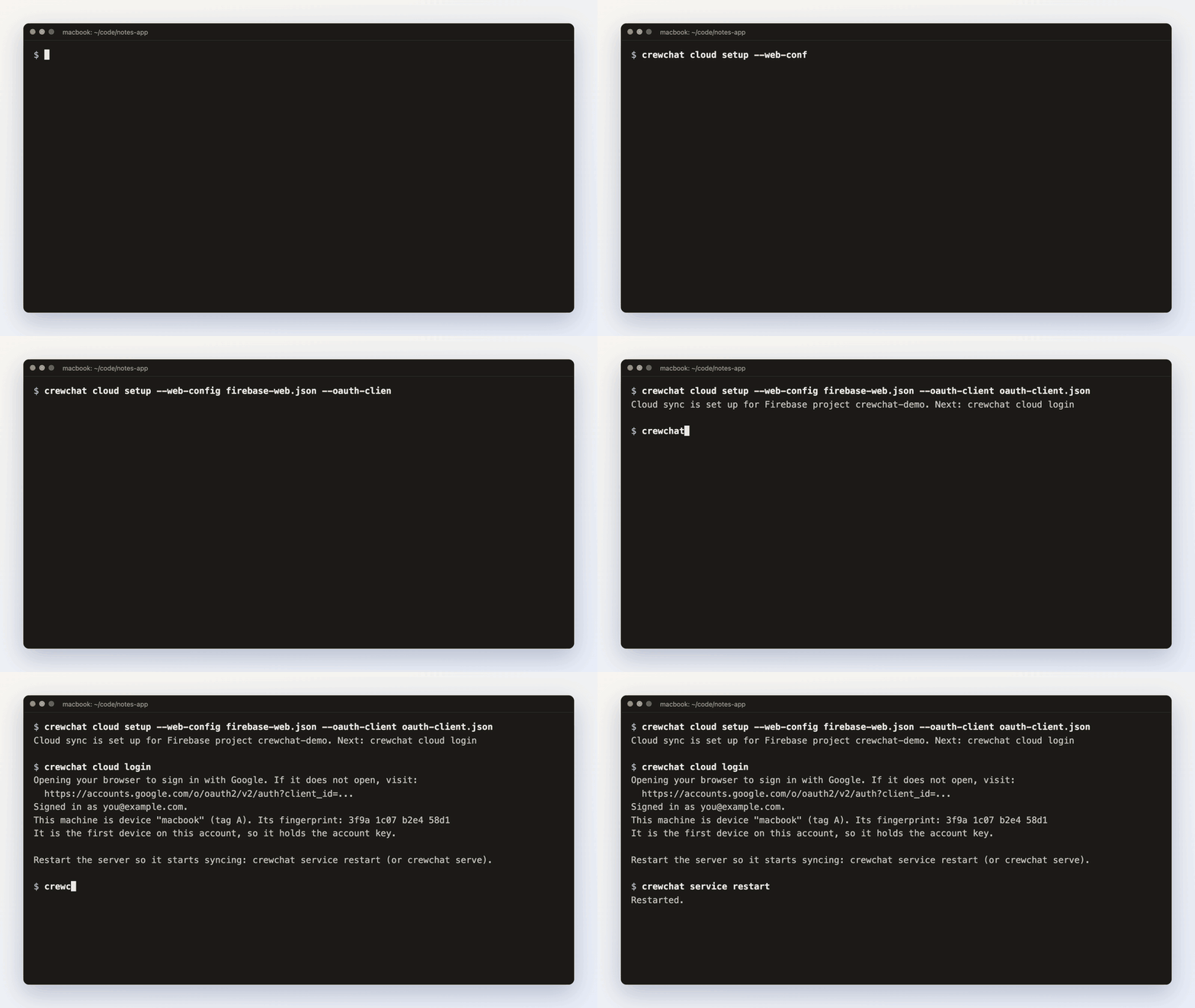
The first machine founds the account. Each later machine prints a fingerprint and waits; approve it from a machine that is already set up, after checking the fingerprint matches:
crewchat cloud approve NEW-MACHINE-NAME
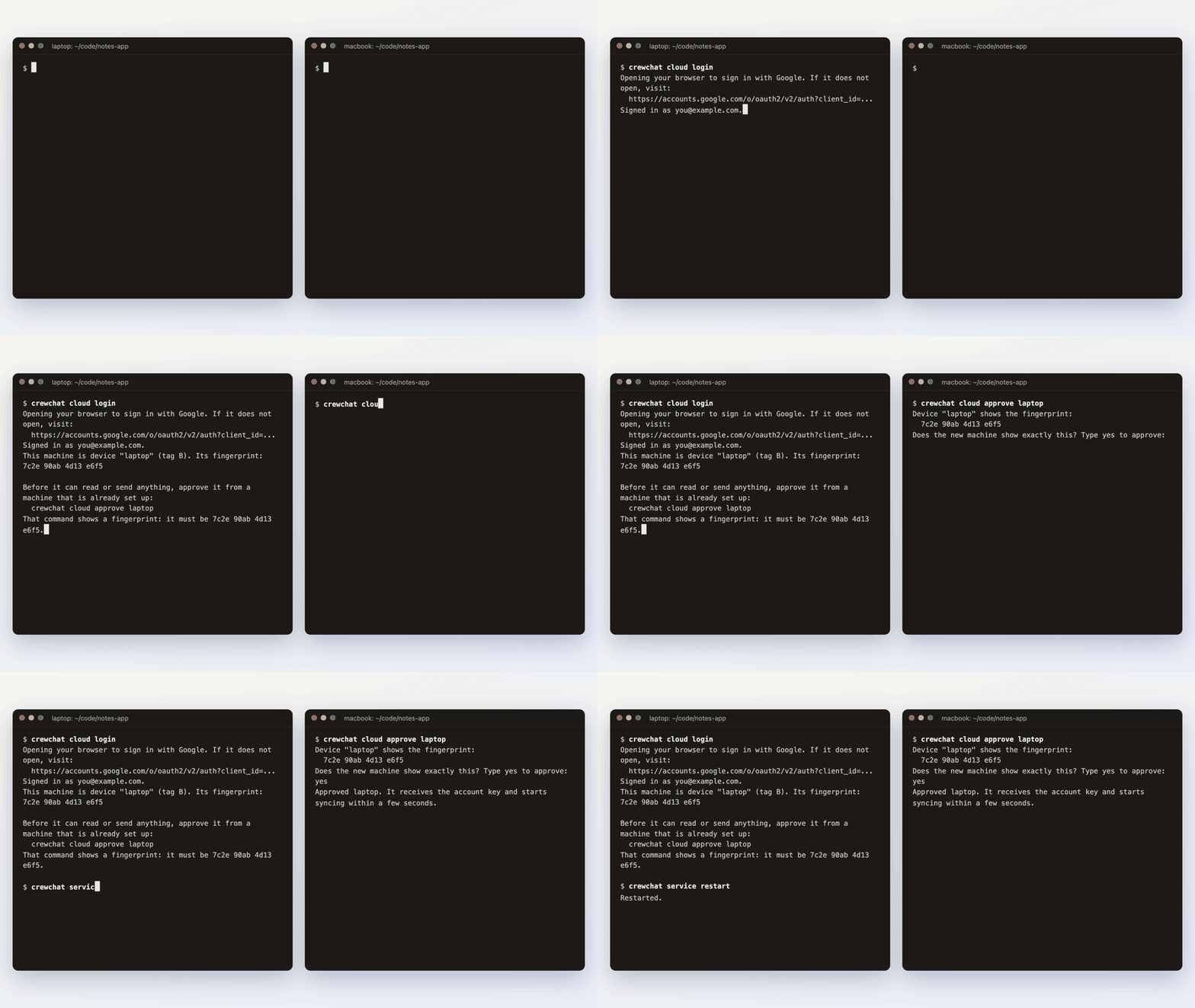
Copy the two files between machines privately (for example over AirDrop, Tailscale or a USB stick), and delete the copies once crewchat cloud setup has read them.
With an agent
Paste this into Claude Code or Claude Desktop with the Claude in Chrome extension connected, or any agent that can drive your browser. You stay signed in to Google in that browser; the agent never needs your password.
Set up a Firebase project for crewchat cloud sync, following docs/firebase-setup.md in the
crewchat repository (https://github.com/deepankar17/crewchat/blob/main/docs/firebase-setup.md).
Use my browser, where I am already signed in to Google.

1. In the Firebase console (https://console.firebase.google.com), create a project named
   "crewchat" (or use the one I name: ______). Google Analytics off.
2. Create the Firestore database: Standard edition, location ______ (if I left this blank, ask
   me; it cannot be changed later), production mode.
3. Publish the security rules exactly as printed by `crewchat cloud rules` (run it, or copy them
   from crewchat_cloud.py, RULES). If the rules editor ignores typing, click "Develop and Test",
   close that panel, click inside the rules, select all, then type. Check the text before you
   publish.
4. Authentication: Get started, enable the Google provider, public name "crewchat", support email
   = my account's email. Save.
5. Project settings → Your apps → add a Web app named "crewchat", without Hosting. From the
   firebaseConfig it shows, write {"projectId": ..., "apiKey": ...} to
   ~/.crewchat/firebase-web.json.
6. Google Cloud console (https://console.cloud.google.com), same project: create an OAuth client
   of type "Desktop app" named "crewchat cli". From the dialog, save the client ID and secret to
   ~/.crewchat/oauth-client.json as {"installed": {"client_id": ..., "client_secret": ...}},
   with file permissions 600. The secret is shown only once.
7. Check the OAuth consent screen / Audience: if it is in Testing, add my Google account as a
   test user.
8. Run: crewchat cloud setup --web-config ~/.crewchat/firebase-web.json --oauth-client ~/.crewchat/oauth-client.json
   Then tell me to run `crewchat cloud login` myself (it opens a Google sign-in I must approve).

Rules for you:
- Never paste the OAuth client secret into this chat or any message, and never commit it.
- Do not enable billing, change project ownership or IAM, turn on other products, or accept
  terms on my behalf without asking me first.
- Stop and ask me if anything in the console looks different from these steps.
- At the end, tell me in a few lines what you created, the project ID, the database location,
  and anything you could not do.
Troubleshooting
| Symptom | Likely cause |
|---|---|
Firestore refused: check the security rules | The rules from step 3 are not published, or the machine signed in to a different Google account than the others |
sign-in failed ... redirect_uri_mismatch | The OAuth client is not of type Desktop app |
access_denied or "app not verified" during sign-in | Your account is not a test user while the app is in Testing (step 6.5) |
| A machine stays "waiting for approval" | Run crewchat cloud approve NAME on a machine that is already approved |
Windows Smart App Control blocked a file of this Python (or NameError: name 'base_events' before 0.11.1) | Windows refuses the unsigned Python uv installs. Install Python 3.12 from python.org (winget install -e --id Python.Python.3.12), then uv tool install --reinstall --python-preference only-system --python 3.12 "crewchat[cloud]" |
cloud sync is off in the server log | Read the reason on that line; the local chat keeps working meanwhile |